Adobe Acrobat PDF dark mode: what works and what doesn't
Published: March 12, 2026
James reviews contracts for hours at a stretch. He has Adobe Acrobat open all day, and by mid-afternoon his eyes are tired from the endless white pages. He's heard that Acrobat has some kind of dark mode — he digs into the preferences, finds the Accessibility settings, enables "Replace Document Colors," and the background turns dark. Problem solved, he thinks. Then he shares the file with a client and gets a call: the PDF looks completely normal on their end. Turns out the dark mode never touched the actual file.
This is the core limitation of Acrobat's built-in approach. Understanding what it does — and doesn't do — will save you a lot of confusion.
Quick answer
Adobe Acrobat's "Replace Document Colors" option changes how the PDF looks on your screen inside Acrobat — it does not change the file itself. If you want a dark PDF that looks dark everywhere (when shared, printed, or opened in another app), you need to convert the file. Use Invert PDF Colors to download a permanently dark version, then open it in Acrobat as usual.
Acrobat's built-in dark display option
Adobe Acrobat Reader and Acrobat Pro both have an accessibility setting that can apply a dark background while you read. Here's how to find it:
- Open Acrobat and go to Edit > Preferences (Windows) or Acrobat > Preferences (Mac).
- Click Accessibility in the left panel.
- Check Replace Document Colors.
- Select Custom Color and set the Page Background to a dark color (such as #1a1a1a or #2d2d2d) and Document Text to white or light gray.
- Click OK. The document view updates immediately.
Some newer versions of Acrobat also have a View > Display Theme option or a night mode toggle — the exact location varies by version and platform.
What Acrobat's dark mode can and can't do
What it does
- Changes the background and text color in Acrobat's display — your reading experience on that machine becomes dark.
- Applies to all documents you open in Acrobat, not just one file.
- Requires no file modification or conversion — quick to enable.
What it doesn't do
- Does not change the actual PDF file. Anyone else who opens the file sees the original colors.
- Doesn't affect images or colored elements. Photos, logos, and colored charts still display in their original colors — sometimes with jarring contrast against the forced dark background.
- Doesn't carry over to other PDF apps. If you open the same file in Chrome, Apple Books, or a mobile viewer, it's back to white.
- Doesn't apply when printing. The document prints with its original colors.
- Can break some layouts. Documents with light-colored text on colored backgrounds may become unreadable when Acrobat forces a dark background.
For a permanently dark PDF: convert the file
If you want the dark background to be part of the file — so it looks dark in Acrobat, in a browser, on mobile, and when shared — convert it with Invert PDF Colors. The process takes a minute and the result is a standard PDF you can open anywhere.
- Go to Invert PDF Colors in your browser.
- Upload your PDF. Processing happens locally — the file doesn't leave your device.
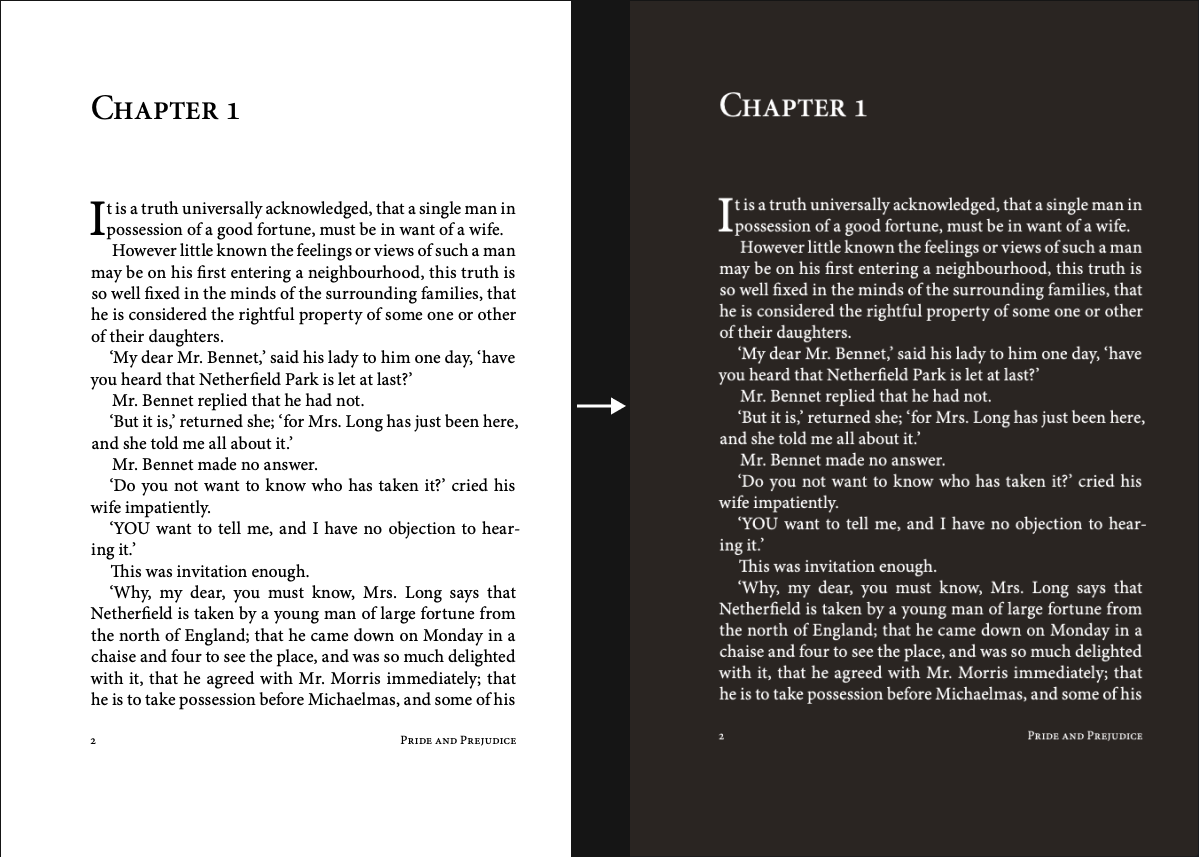
- Choose a theme. Classic gives a clean dark background with white text, similar to what Acrobat's "Replace Document Colors" looks like. Warm adds a slight amber tint. Invert (Negative) does a full photo-negative effect. See our theme guide for a full comparison.
- Download the converted PDF.
- Open the downloaded file in Adobe Acrobat as usual.
The dark background is now embedded in the file. You can annotate, fill forms, add comments, and use all of Acrobat's normal features — the dark theme just stays in place.
Before/After effect
Which approach is right for you?
Use Acrobat's built-in setting if:
- You only need dark mode for your own reading on one machine.
- You're working with many different files and don't want to convert each one.
- The documents are mostly plain text with few images or complex layouts.
Convert the file if:
- You need to share the dark version with others.
- You read on multiple devices or in multiple apps.
- You want the dark theme to apply when printing.
- Acrobat's forced colors are breaking your document's layout or making some content unreadable.
FAQ
Does Acrobat's dark mode work on all PDFs?
Not consistently. The "Replace Document Colors" setting works best on simple text-based PDFs. Documents with colored backgrounds, images, or complex formatting may look distorted when Acrobat forces a dark display color on top of them.
Will the converted PDF still work normally in Acrobat?
Yes. The converted file is a standard PDF. You can open it in Acrobat, annotate it, fill forms, add signatures, and use all other Acrobat features. The dark background is just part of the document content.
Can I convert a PDF that has form fields or signatures?
Yes, the conversion applies a dark theme to the visual appearance of the document. Form fields and text content are preserved in the converted file.
Does Acrobat mobile have a dark mode?
Adobe Acrobat on iOS and Android has a "Night Mode" toggle in the reading view, but like the desktop setting, it only changes the display on your device — it doesn't modify the file. For a dark PDF that works everywhere, converting the file is the more reliable option.