Chrome PDF dark mode: how to read PDFs comfortably
Published: December 27, 2025
Quick answer
If you’re reading PDFs for a long time (especially at night), a dark background can feel less harsh than bright white pages. Chrome’s built-in PDF viewer doesn’t offer a reliable “PDF dark mode” switch for every PDF, so the best option depends on what you need: temporary reading or a downloadable dark-mode PDF.
Option 1 (fastest): use an online PDF dark mode reader
If you just want to read comfortably in Chrome, the simplest path is a browser-based reader that applies a dark theme while you preview.
- Open the PDF Dark Mode Reader in Chrome.
- Upload your PDF (processing happens locally in your browser).
- Choose a theme (Warm / Classic / Blue / Green).
- If you want a stronger “photo negative” look, choose Invert (Negative) in the converter tool.
For a full inversion you can download and share, use Invert PDF Colors.
Before/After effect
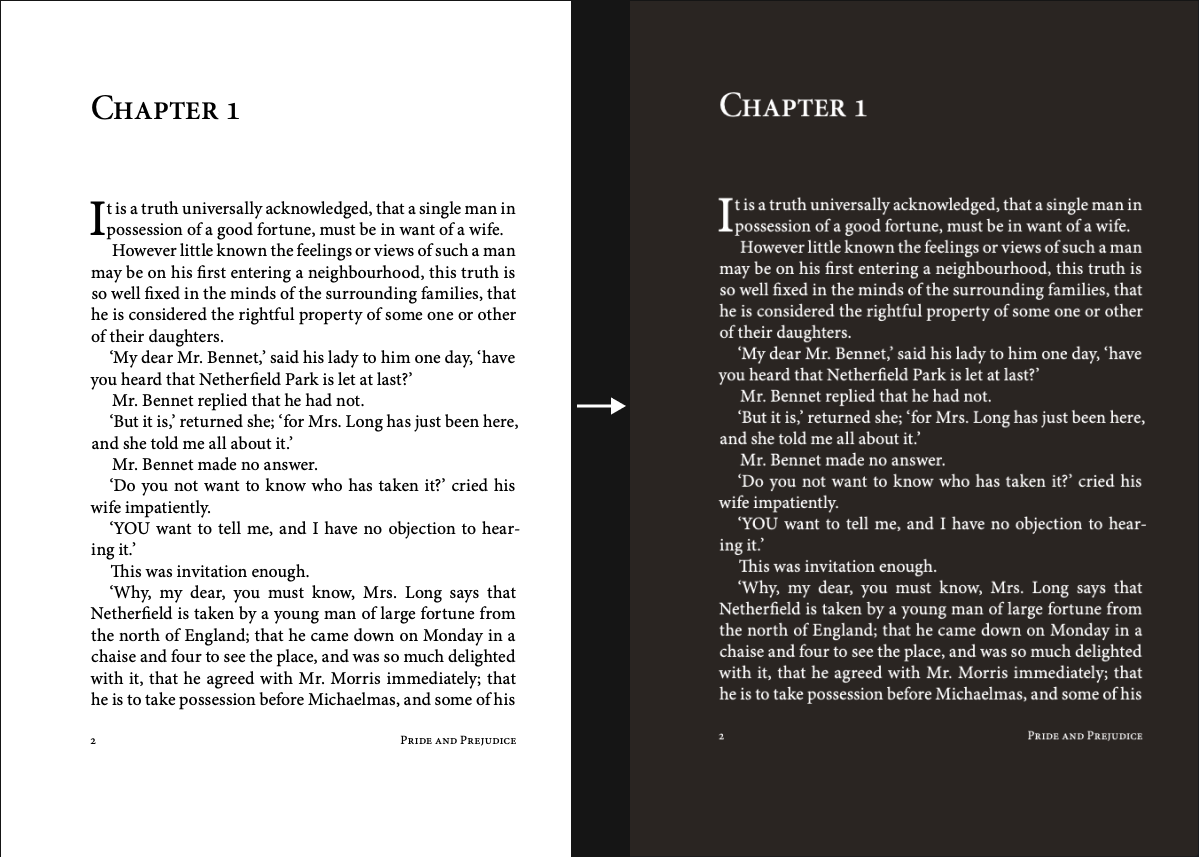
Option 2: browser dark mode and extensions
It’s very common to try a browser-wide dark mode (or a “dark mode” extension). This can work great for regular web pages, but PDFs are a different story.
A) Global dark mode extensions (usually for websites)
Many popular dark mode extensions mainly target HTML/CSS pages. Chrome’s built-in PDF viewer often renders pages differently (for example as canvas), so the extension may not affect the PDF preview at all, or the result may look odd (especially for images and charts).

B) PDF-specific extensions (possible, but more setup)
There are also extensions designed specifically for PDF viewing. These can work, but the setup is usually more involved (permissions, file access, default viewer behavior), and it’s not always consistent across devices.
If you want the simplest “just works” approach in Chrome, it’s usually easier to use a dedicated web-based PDF reader or converter: PDF Dark Mode Reader.
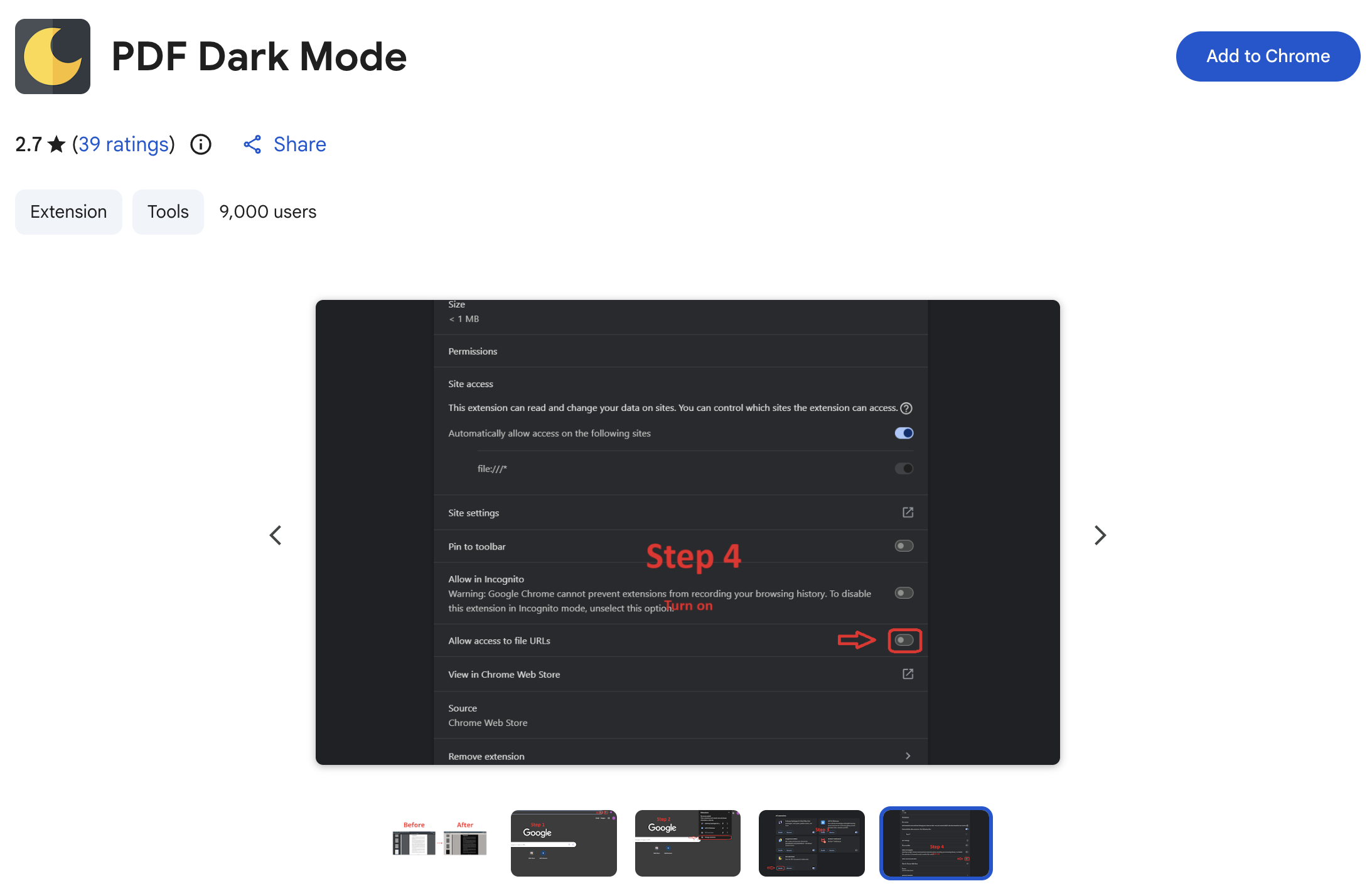
Option 3: convert the PDF and download it (permanent)
If you want the dark mode to “stick” in any PDF reader (so you can share it or read offline), convert it and download a new PDF:
- Open Invert PDF Colors.
- Upload your PDF.
- Select a theme. Use Invert (Negative) for a photo-negative look (complementary colors).
- Download the converted PDF.
FAQ
Why don't I see a PDF dark mode toggle in Chrome?
Chrome's PDF viewer is intentionally simple and doesn't provide a consistent dark-mode option for all PDFs. Even when a "dark" setting exists in some setups, results vary by file and platform.
Why do images look strange when I force dark mode?
Force-dark features often invert or recolor everything, including photos and charts. For PDFs, a theme-based reader or a converter usually produces more predictable results.
What's the difference between themes and Invert (Negative)?
Warm/Classic/Blue/Green are reading-friendly tints. Invert (Negative) is a stronger photo-negative effect (complementary colors).