What does invert PDF colors mean — and when should you use it?
Published: March 14, 2026
What "invert PDF colors" actually means
When you invert PDF colors, every color in the document gets flipped to its mathematical opposite. White becomes black. Black becomes white. Dark blue becomes bright yellow. Red becomes cyan. The result looks like a photo negative — which is exactly what it is, applied to a document instead of film.
This is different from applying a "dark theme" to a PDF. A dark theme adds a colored overlay or shifts the document to use a dark background with readable text. Inversion is more literal: every single color value is flipped, including photos, charts, logos, and colored backgrounds.
You can try both approaches using Invert PDF Colors — the tool offers tinted dark themes (Warm, Classic, Blue, Green) as well as the full Invert (Negative) option.
What an inverted PDF looks like
For a plain text document — black text on a white background — the result is clean and readable: white text on a black background. It looks like many dark-mode interfaces and is easy on the eyes in low light.
For a document with images, diagrams, or color-coded content, the result is more dramatic. A photo of a person looks like an X-ray. A bar chart in blue becomes orange. A green highlighted section turns magenta. This is the main trade-off with full color inversion: it's predictable for text, unpredictable for anything else.
Before/After effect
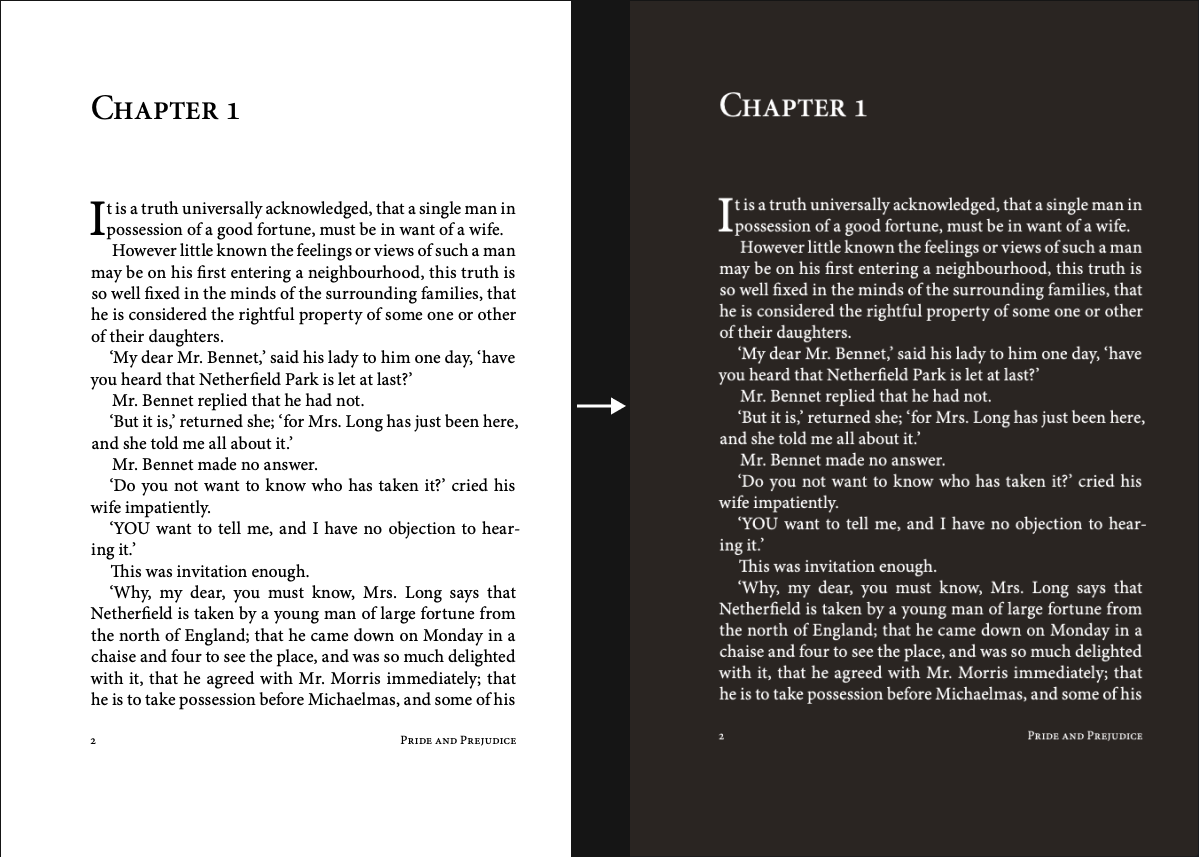
When inverting PDF colors is the right choice
Text-heavy documents
Contracts, research papers, legal documents, reports, plain articles — anything that's mostly black text on a white background. Full inversion gives you clean white text on black, with strong contrast and no tinting. For this type of content, the Invert (Negative) effect often looks cleaner than a colored dark theme.
Sharing a permanently dark PDF
If you need a dark PDF that stays dark when you share it — via email, file transfer, or in a document management system — converting with inversion embeds the dark background into the file. The recipient sees the same colors you do, regardless of their device or PDF app.
Maximum contrast for readability
Inversion produces pure black and pure white — the highest possible contrast. For users who need very clear text separation, or for reading in difficult lighting conditions, this can be more readable than a softer tinted dark theme.
Dark-on-white diagrams you need to make readable at night
If you have a technical diagram — a circuit schematic, an architectural drawing, a network diagram — that's drawn in black lines on a white background, inversion works well. The white background becomes black, the lines become white, and the diagram stays clear.
When NOT to use full color inversion
PDFs with photos or illustrations
Photos become photo negatives — skin tones turn green, skies go orange, everything looks wrong. If your PDF has product images, portraits, or illustrated content, a dark theme (Warm or Classic) is a much better choice than full inversion.
Color-coded documents
If color carries meaning — red for urgent, green for approved, yellow for caution — inversion flips those meanings. Red becomes cyan, green becomes magenta. A document where color codes matter becomes confusing or misleading after full inversion.
Branded documents
Company logos, branded headers, and colored design elements all invert. A document that needs to look professional or on-brand will look unrecognizable after full color inversion. Use a tinted dark theme for professional documents you plan to share.
Invert (Negative) vs. dark themes: a quick comparison
| Aspect | Invert (Negative) | Dark themes (Warm, Classic…) |
|---|---|---|
| Text documents | Excellent | Excellent |
| Photos & images | Looks like a negative | Generally preserved |
| Color-coded content | Colors flipped, meaning lost | Colors tinted but recognizable |
| Contrast level | Maximum (pure black/white) | Softer, more comfortable |
| Branded/professional docs | Looks unrecognizable | Better for sharing |
| Long reading sessions | Can feel harsh | Warmer tones are easier |
How to invert PDF colors
The process takes under a minute and the file never leaves your device:
- Open Invert PDF Colors in your browser.
- Upload your PDF.
- Select Invert (Negative) for full color inversion, or choose one of the dark themes if you prefer a softer result.
- Download the converted PDF.
The downloaded file is a standard PDF — you can open it in any PDF app, share it, print it, or annotate it. The dark background is embedded in the file, not just a display setting.
FAQ
Does inverting PDF colors affect the text content?
No. The text content, structure, and any form fields or metadata in the PDF are not changed. Only the visual appearance — colors — is affected. You can still search, copy, and read the text normally after inversion.
Can I invert colors back to the original?
Yes — just invert again. Applying the Invert (Negative) effect twice returns the document to its original colors, since each color flips back to its starting value.
Is inverting the same as making a PDF dark mode?
Not exactly. "Dark mode" usually refers to a dark background with readable text — which inversion achieves for text-only documents. But for documents with images or colors, inversion produces a photo-negative effect that's different from what most people mean by dark mode. If you want a more controlled dark appearance, use one of the tinted dark themes instead.
Is my PDF uploaded to a server when I use Invert PDF Colors?
No. Processing happens locally in your browser. Your file never leaves your device, making it safe to use with confidential or sensitive documents.