Invert PDF for printing: save ink by flipping a dark PDF to light
Published: March 18, 2026
Claire received a slide deck as a PDF — dark background, white text, the kind that looks great on screen during a presentation. Her manager asked her to print copies for a meeting. She hit Print, glanced at the preview, and saw 40 pages of solid dark backgrounds. Her office printer was about to burn through most of a toner cartridge on a single document.
This is a common problem. Dark PDFs are designed for screens. When you send them to a printer, that dark background gets reproduced on every page — and printers measure ink coverage by area. A page that's 80% dark background uses dramatically more toner than a page with black text on white. The fix is to invert the colors before printing.
Quick answer
Use Invert PDF Colors to flip your dark PDF back to a light background before printing. Upload the dark PDF, select Invert (Negative), download the light version, then print that instead. White background, dark text — the standard print-friendly format.
How much ink does a dark background actually use?
On a laser printer, toner consumption is roughly proportional to the amount of dark area on the page. A page with black text on a white background might use 3–5% toner coverage. A slide with a full dark background can hit 60–80% coverage on that same page. That's 10 to 20 times more toner per page.
On inkjet printers, the situation is similar — dark backgrounds require multiple ink passes and use significantly more ink than a text-only page. For a 40-page document, this difference can be the gap between finishing your cartridge or not.
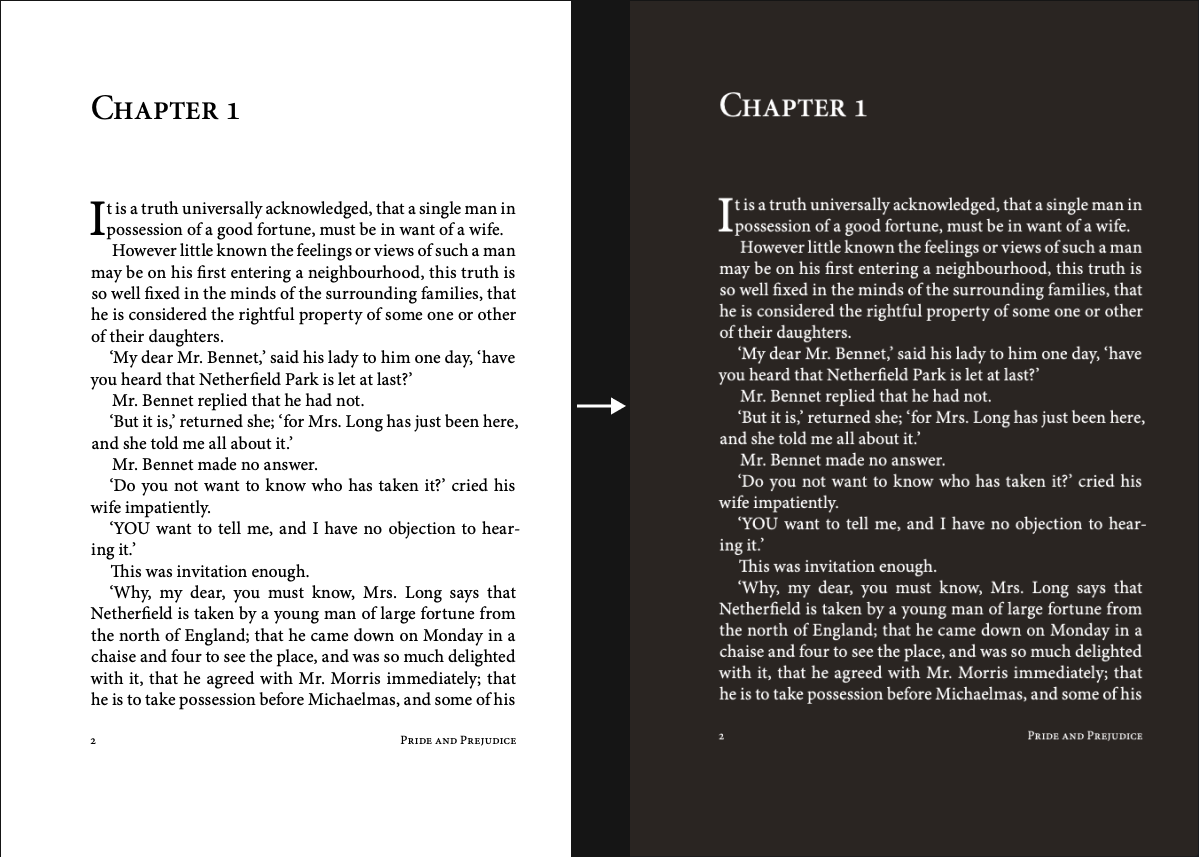
Inverting the PDF before printing converts the dark background to white and the white text to dark — exactly what a printer needs to produce a readable, ink-efficient output.
How to invert a dark PDF before printing
- Open Invert PDF Colors in your browser.
- Upload your dark PDF.
- Select Invert (Negative). This flips every color to its opposite — dark background becomes white, white text becomes black.
- Download the converted file.
- Open the downloaded PDF and print it as normal.
Your file is processed locally in the browser — nothing is uploaded to a server. The whole process takes under a minute.
Before/After effect
What happens to images and colored elements?
Invert (Negative) flips all colors, including photos and diagrams. For a presentation-style PDF with a dark background and mostly text or simple graphics, the result is usually clean and readable — text goes dark, backgrounds go light.
If your PDF contains photos, the inverted version will show photo negatives — which may look odd in print. In that case, you have two options:
- Print in grayscale — most printer dialogs have a "Black and white" or "Grayscale" option. This often produces cleaner results for dark PDFs with images, since grayscale conversion handles photos better than color inversion.
- Use a light dark theme — instead of full inversion, try converting with the Classic or Warm theme first, which gives a gentler dark-to-light transition and preserves photos better. The resulting background won't be pure white, but it will use significantly less ink than the original dark version.
Other ink-saving tips when printing PDFs
- Remove unnecessary pages before printing. Open the PDF in your browser or viewer and note which pages are text-heavy vs. design-heavy. Print only the pages you actually need.
- Print 2 pages per sheet. Most printer dialogs allow "2-up" printing — two pages side by side on one sheet. For text content, this is still readable and cuts paper and ink usage in half.
- Use Draft or Economy mode. Most printers have a reduced-quality mode that uses significantly less ink. For internal documents or personal notes, draft quality is usually sufficient.
- Preview before printing. Always check the print preview. A dark background you missed can add significant ink usage to an otherwise normal document.
FAQ
Will the text still be readable after inverting for print?
Yes, for standard dark PDFs with white or light-colored text on a dark background. After inversion, the text becomes dark on a white background — the standard print format. The content and layout are unchanged; only the colors flip.
Does inverting affect the PDF content or just the appearance?
Only the visual appearance changes. The text, structure, and any form fields or metadata in the PDF are preserved. You can still search, copy, and read the text normally in the inverted file.
Can I invert a PDF twice to get the original back?
Yes. Applying Invert (Negative) twice returns the document to its original colors, since each color flips back to its starting value. So you can keep both a dark version for reading on screen and a light version for printing.
Does this work for PDFs with colored backgrounds, not just black?
Yes. Any colored background gets inverted to its complementary color. A dark navy background becomes a light yellow. A dark green becomes a light magenta. For most solid-color presentation backgrounds, the result is a light background that prints with much less ink than the original.