How to get PDF dark mode on Android
Published: March 10, 2026
Daniel commutes an hour each way and uses that time to read research papers on his Android phone. He has dark mode turned on system-wide — every app, every notification, everything dark. Then he opens a PDF attached to an email and gets a wall of white. He tries a dark mode browser extension, adjusts display settings, even digs through developer options. The PDF still ignores all of it.
This is a known limitation on Android. System dark mode works well for apps and websites, but PDF files carry their own background and text colors inside the file — the OS can't override them. Here's what actually works on Android, and how to fit it into a real mobile workflow.
Quick answer
The fastest way to get pdf dark mode on Android is to open your PDF in a browser-based dark mode reader. Open Chrome (or any Android browser), go to the PDF Dark Mode Reader, upload your file, and read with a dark background — no app install, no account.
If you want a dark PDF saved to your phone that opens in any app offline, use Invert PDF Colors to download a converted version.
Method 1: read in your browser with a dark theme
This works in Chrome, Samsung Internet, Firefox for Android, or any modern mobile browser.
- Open your Android browser and go to the PDF Dark Mode Reader.
- Tap the upload area. Your browser will open the file picker — you can choose a PDF from Downloads, Google Drive, or anywhere on your device.
- Choose a theme. Warm works well for low-light reading, Classic gives a cleaner neutral dark background. (See the full theme guide if you want a detailed breakdown of each option.)
- Scroll through your PDF in the browser with the dark theme applied.
Your PDF is processed entirely in the browser — nothing is uploaded to any server. Works on Android phones and tablets.
Before/After effect
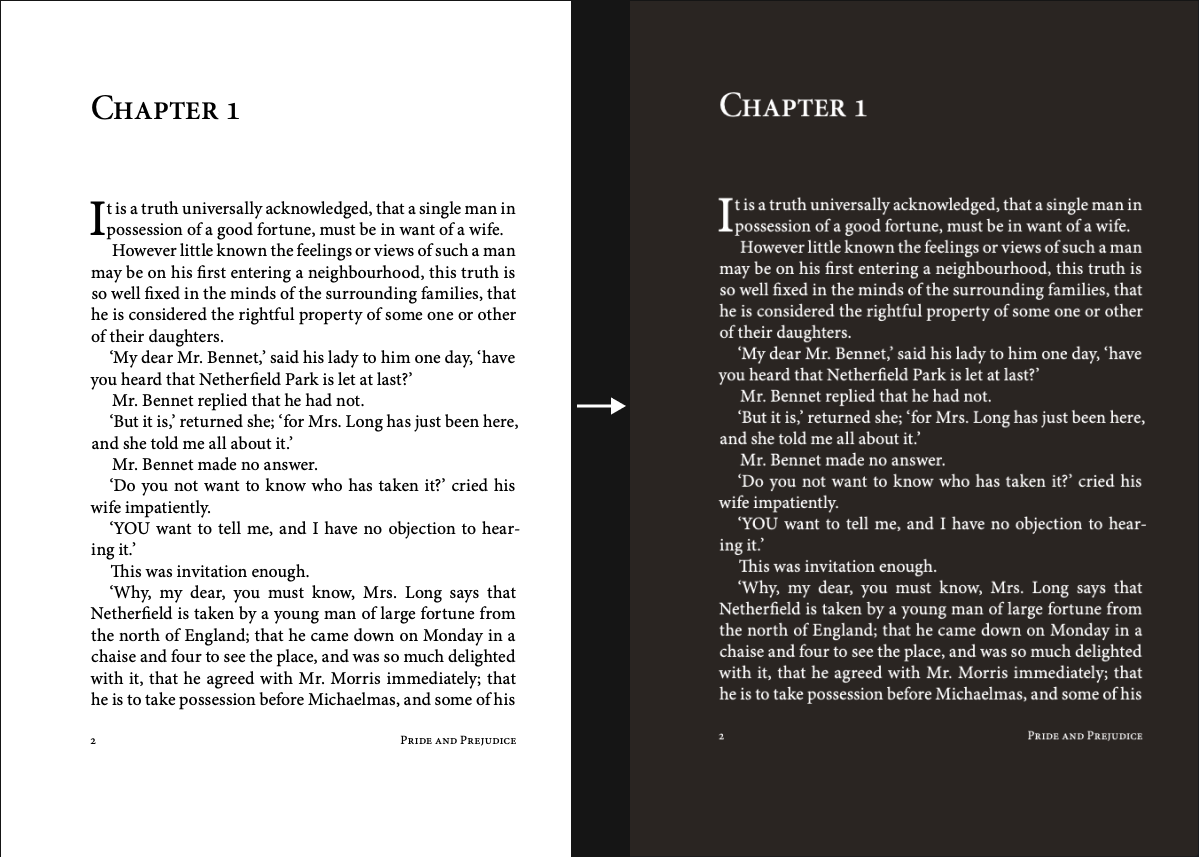
Method 2: convert and download a dark PDF
If you want a dark PDF that opens normally in any viewer app — without going back to the website each time — convert it and download it once.
- Open Invert PDF Colors in your Android browser.
- Upload your PDF and choose a theme.
- Tap Download. The converted PDF saves to your device's Downloads folder.
Once downloaded, you can open the dark PDF in any app you already use — no extra setup needed.
Opening your dark PDF in Android apps
After downloading, here's how the converted PDF works with common Android apps:
Google Drive
Upload the converted PDF to Drive and open it normally. The dark background is preserved in the Drive viewer. You can also share it from Drive — recipients will see the dark version too.
Adobe Acrobat (Android)
Open the downloaded file in Acrobat. The dark background from the conversion is part of the file, so it displays correctly regardless of Acrobat's own reading mode settings. You can annotate and highlight as usual.
Samsung's built-in viewer / Files app
Find the converted file in your Downloads folder, tap to open. The dark theme is embedded in the PDF and shows up correctly in Samsung's viewer.
WhatsApp / Gmail attachments
If you receive a bright PDF over WhatsApp or Gmail, download it, convert it using Invert PDF Colors, then send the dark version back or save it for yourself. The whole process takes under a minute on mobile.
Why Android's dark mode doesn't work on PDFs
Android applies dark mode by recoloring app interfaces and, in some cases, web page styles. PDFs are different — they're fixed-format documents where the background color, text color, and layout are all defined inside the file. The OS has no standard way to reach inside and change those values.
Chrome's developer options include a "Force Dark Mode for Web Contents" flag, but this targets HTML/CSS rendering — it doesn't reliably affect PDFs opened in the browser viewer. Some Android PDF apps (like Adobe Acrobat) have their own built-in night mode, but these are app-specific and inconsistent across different document types.
Converting the PDF itself — or reading it through a dedicated dark mode reader — gives you a consistent result on any Android device and any viewer app.
FAQ
Does this work on older Android versions?
Yes. The PDF Dark Mode Reader runs in the browser, so it works on any Android version that supports a modern browser like Chrome. No minimum Android version required.
Is my PDF file uploaded to a server?
No. Processing happens locally in your browser. Your PDF never leaves your device, which makes it safe to use with personal, medical, or confidential documents.
Can I use this on an Android tablet?
Yes — the PDF Dark Mode Reader works on Android tablets the same way as phones. Open it in your tablet's browser, upload your PDF, and read with a dark theme.
Will the dark theme stay if I share the converted PDF?
Yes. The dark background is embedded into the file when you download it, so anyone you share it with will see the dark version — regardless of their device or PDF viewer.