How to make a PDF dark mode in Google Drive
Published: December 29, 2025
Quick answer
Many people store PDFs in Google Drive and preview them directly in the browser. The problem is that Drive’s PDF preview doesn’t provide a consistent “PDF dark mode” switch. If you need dark mode, the practical approach is to open the PDF in a dedicated reader or convert it.
Fastest workaround: open the PDF in an online dark mode reader
If you just want to read and you don’t need to produce a new file:
- Download the PDF from Drive to your device (or open it from Files if you’re on mobile).
- Open PDF Dark Mode Reader.
- Upload the PDF and pick a theme.
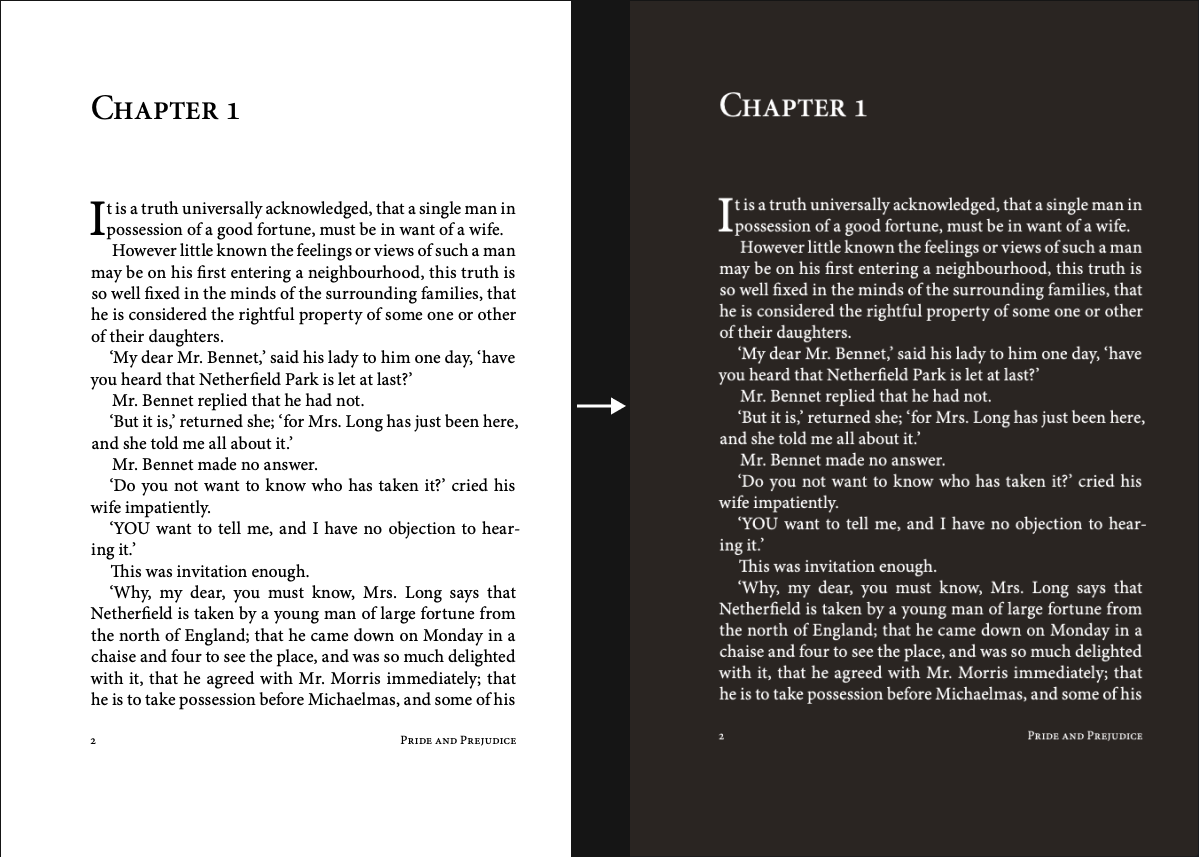
Before/After effect
If you need a permanent dark PDF (for sharing)
For team sharing, offline reading, or sending a PDF that stays dark in any viewer:
- Open Invert PDF Colors.
- Upload the PDF you downloaded from Drive.
- Choose a theme, or choose Invert (Negative) for a photo-negative look (complementary colors).
- Download the converted PDF and upload it back to Drive if needed.
Tip: don’t confuse Drive “dark mode” with PDF dark mode
Google Drive may have a dark UI theme, but that doesn’t automatically change the PDF page colors in the preview. PDF dark mode needs a PDF-specific inversion/theme process.
FAQ
Can I keep the PDF in Drive and still use dark mode?
You can store it in Drive, but for dark-mode viewing you'll usually open it in a reader that supports themes, or convert and re-upload the dark version.
What's the difference between themes and Invert (Negative)?
Themes (Warm/Classic/Blue/Green) are reading-friendly tints. Invert (Negative) is a stronger photo-negative effect (complementary colors).
Do I need to install anything?
No. You can preview with the reader in the browser, or convert and download a dark PDF directly.