How to get PDF dark mode on iPad
Published: March 12, 2026
Sophie is an architecture student who does most of her reading on an iPad Pro. She annotates technical drawings with Apple Pencil, keeps lecture notes open in Split View, and reads through dense construction specs during evening study sessions. Everything on her iPad is in dark mode — except every PDF she opens, which snaps back to blinding white the moment it loads.
Unlike iPhones, iPads are used heavily as document workstations. The larger screen makes the white-background problem more noticeable, and the annotation workflow adds extra requirements — a dark PDF needs to stay usable with Apple Pencil. Here's what actually works.
Quick answer
For casual reading, open your PDF in the PDF Dark Mode Reader in Safari — no app install needed. For annotation workflows with Apple Pencil, use Invert PDF Colors to download a dark version, then open it in GoodNotes, Notability, or any annotation app you already use.
Method 1: read in Safari with a dark theme
The fastest option for reading without annotating. Works in Safari and any other browser on iPad.
- Open Safari on your iPad and go to the PDF Dark Mode Reader.
- Tap the upload area. Choose your PDF from Files, iCloud Drive, or any connected storage.
- Select a dark theme and read. For a full breakdown of each theme option, see this guide.
Your PDF is processed locally in the browser — nothing is sent to a server. This is useful for sensitive documents like client briefs or exam materials.
Before/After effect
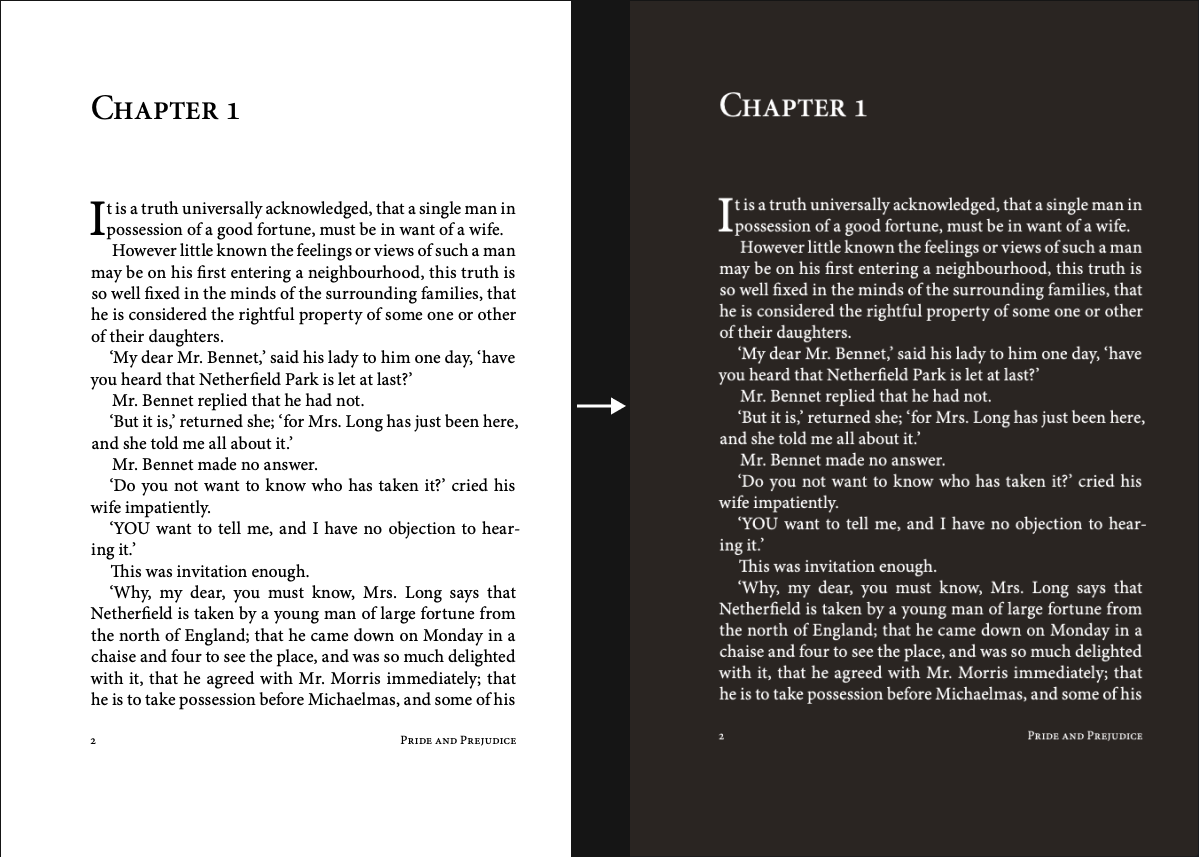
Method 2: download a dark PDF for annotation
If you need to annotate with Apple Pencil, highlight text, or add comments, you need a real PDF file — not a browser preview. Convert it first, then open it in your annotation app.
- Open Invert PDF Colors in Safari.
- Upload your PDF and choose a theme. Classic works well for annotation — clean dark background, white text, good contrast for ink strokes.
- Tap Download. The converted PDF saves to your Downloads folder via the Files app.
- Open the file in your annotation app of choice.
Using your dark PDF with annotation apps
The converted PDF works as a standard file, so it opens in any app that handles PDFs on iPad. Here's how it fits into common annotation workflows:
GoodNotes
Import the downloaded dark PDF into GoodNotes from Files. The dark background is preserved as part of the document. Apple Pencil annotations appear on top of the dark background — use light ink colors (white, yellow, light blue) for contrast. GoodNotes' own dark mode setting is separate and doesn't need to be on for this to work.
Notability
Import via Files or iCloud Drive. The dark theme carries over into Notability's PDF view. When recording audio notes alongside a dark PDF, the interface stays readable under room lighting.
Apple Books
Add the dark PDF to Books via Files (tap and hold the file, select "Open in Books"). Books displays the dark background as-is. You can still use Books' built-in highlights and notes on a dark-background PDF.
Files app (quick reading)
For quick reading without annotation, tap the dark PDF in Files — it opens in the built-in QuickLook viewer with the dark background intact. No extra app needed.
Using Split View with a dark PDF
One of the most practical iPad setups for studying or reviewing documents: open your dark PDF on one side, your notes app on the other. Since the converted PDF is a regular file, it opens in Split View just like any other document.
To set this up: open your annotation app, then swipe up from the bottom to open the Dock, and drag a second app (like Notes or a browser) into Split View. With a dark PDF on one side and a note-taking surface on the other, the contrast between panels is much easier on the eyes than a bright white PDF next to a dark interface.
Why iPadOS dark mode doesn't affect PDFs
iPadOS dark mode works by recoloring app interfaces and web content. PDFs are fixed-format documents — their background and text colors are defined inside the file itself, not in the app rendering them. The system dark mode setting simply doesn't reach inside the PDF.
Apple Books and some third-party readers have their own "sepia" or "night" reading mode, but these apply a display-level overlay rather than actually converting the file — so they don't carry over when you share the PDF or open it in another app. Converting the file with Invert PDF Colors embeds the dark theme into the file permanently.
FAQ
Will my Apple Pencil annotations still work on a dark PDF?
Yes. The dark background is part of the PDF file, and annotations go on top of it as usual. Just pick a visible ink color — white or yellow works well on dark backgrounds in most annotation apps.
Is my PDF uploaded to a server when I convert it?
No. Processing happens locally in Safari on your iPad. Your file never leaves your device, so it's safe to use with confidential documents.
Does this work on older iPad models?
Yes, as long as your iPad runs a modern version of Safari. The PDF Dark Mode Reader and Invert PDF Colors tool work in the browser and don't require a specific iPad model or iPadOS version.
What's the difference between this and iPhone dark mode for PDFs?
The core approach is the same — convert the PDF or use the browser reader. The difference is workflow: on iPad, you're more likely to annotate with Apple Pencil or use Split View, so downloading a converted file makes more sense than it might on a phone. See our iPhone guide for the mobile-specific steps.