How to turn a PDF into dark mode on iPhone
Published: December 28, 2025
Quick answer
If you read PDFs on iPhone at night or for long sessions, a dark background can be easier to look at than bright pages. The key detail is: iPhone Dark Mode doesn’t automatically make every PDF “dark” inside every app. You typically need a PDF-specific method.
Method 1 (recommended): preview in a browser-based PDF dark mode reader
This is the simplest approach when you want quick results without installing an app.
- Open PDF Dark Mode Reader in Safari or Chrome on iPhone.
- Select your PDF (from Files, iCloud Drive, or Downloads).
- Pick a theme (Warm / Classic / Blue / Green) and start reading.
Before/After effect
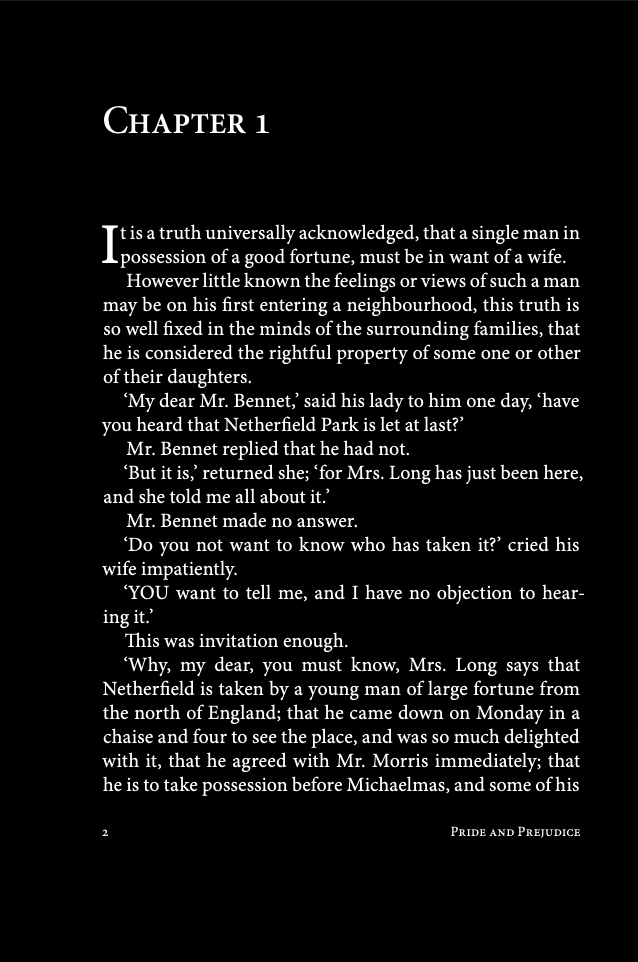
Method 2: create a downloadable dark-mode PDF (permanent)
If you want a dark PDF you can save, share, or open in any PDF app later:
- Open Invert PDF Colors.
- Upload your PDF.
- Select a theme, or choose Invert (Negative) for a stronger photo-negative look (complementary colors).
- Download the converted PDF to Files.
What about iPhone “Smart Invert”?
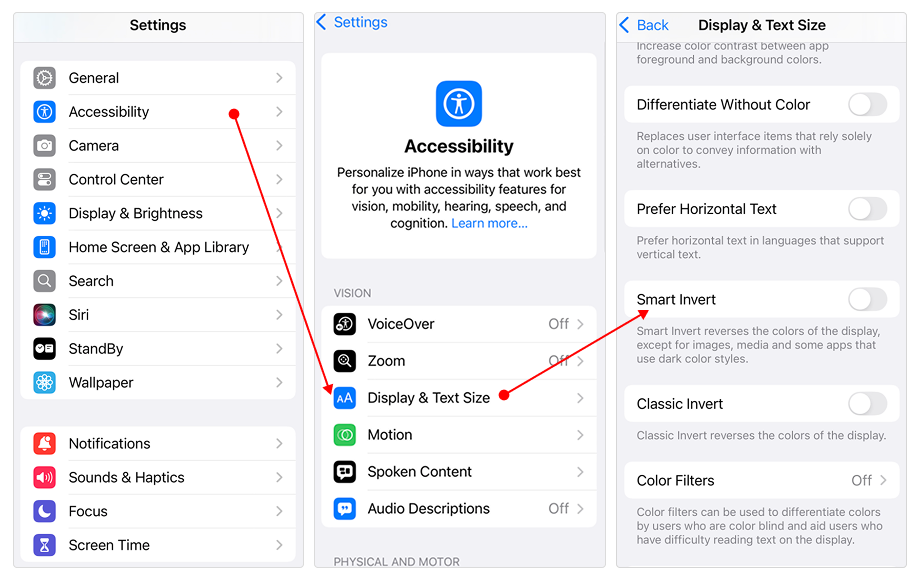
iOS has accessibility options like Smart Invert / Classic Invert. These can help in some situations, but they may also invert images and colors in ways you don’t expect, and results vary depending on the PDF viewer app you’re using. If you want consistent results for PDFs, a PDF-focused reader or converter is usually more predictable.
How to enable Smart Invert on iPhone
FAQ
Why doesn't iPhone Dark Mode make my PDF dark?
Dark Mode changes the iOS UI, but PDFs are rendered inside the viewer app. Many viewers display PDFs as-is unless they have a dedicated theme/inversion feature.
Will the converted PDF work on other devices?
Yes. The converted file is a normal PDF. Once you download it, it can be opened in common PDF readers on iPhone, iPad, Android, Windows, and macOS.
Is Invert (Negative) the same as the reading themes?
No. Invert (Negative) is a strong photo-negative effect (complementary colors). Warm/Classic/Blue/Green are designed as reading-friendly tints.