PDF dark mode in Microsoft Edge: how to read comfortably
Published: March 14, 2026
Tom works in finance and lives inside Microsoft Edge — Teams, Outlook, SharePoint, everything in one browser. He reads a lot of PDF reports throughout the day, and his setup is entirely dark-themed. Edge itself is dark, Windows 11 is in dark mode, but the PDFs he opens in Edge's built-in viewer are still bright white. He checks the PDF toolbar — annotations, Draw, Ask Copilot, page navigation — but no dark mode toggle anywhere.
Edge's PDF viewer is more capable than Chrome's, with built-in annotation tools and Copilot integration. But like Chrome, it doesn't include a native PDF dark mode option. Here's the fastest workaround, and how it fits into Edge's annotation workflow.
Quick answer
Open the PDF Dark Mode Reader in Edge to read with a dark theme directly in the browser. If you want to annotate with Edge's built-in tools on a dark PDF, use Invert PDF Colors to download a converted file first, then open it in Edge's PDF viewer.
Option 1: read with a dark theme in Edge
The simplest way to get a dark PDF reading experience in Edge — no downloads, no extensions.
- Open a new tab in Edge and go to the PDF Dark Mode Reader.
- Upload your PDF. Processing happens locally in the browser — your file never leaves your device.
- Choose a dark theme and read. For a comparison of all theme options, see our theme guide.
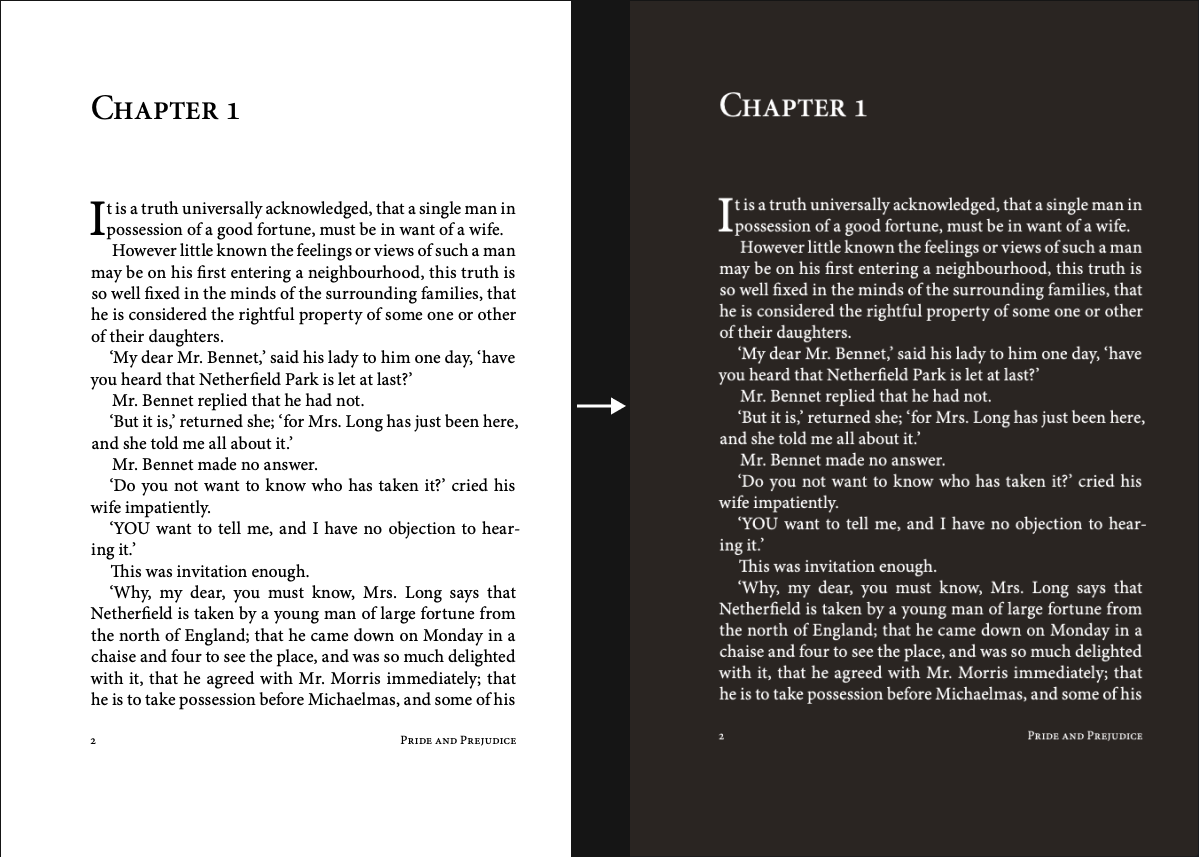
This gives you a consistent dark background regardless of the PDF's original formatting — something Edge's native viewer can't do on its own.
Before/After effect
Option 2: convert and annotate in Edge's PDF viewer
Edge's built-in PDF viewer has solid annotation tools — Draw, highlight, text notes, and an eraser. If you want to use these tools on a dark PDF, convert the file first, then open it in Edge.
- Go to Invert PDF Colors in Edge.
- Upload your PDF and choose a theme. Classic gives a clean dark background that works well with annotation — good contrast for ink and highlights.
- Download the converted PDF.
- Open the downloaded file in Edge — drag it into a new tab, or use File > Open.
- Use Edge's annotation toolbar (Draw, highlight, text) as normal. The dark background stays in place.
When you save the annotated file, both the dark background and your annotations are embedded in the PDF. You can share it and recipients will see the dark version with your notes intact.
What Edge's PDF viewer actually includes
Edge's built-in PDF viewer is worth knowing about — it has more tools than Chrome's viewer out of the box:
- Draw tool — freehand drawing directly on the PDF with adjustable color and thickness.
- Highlight — text highlighting with color options.
- Text notes — add typed annotations to any part of the document.
- Ask Copilot — summarize or ask questions about the PDF content using Edge's AI assistant.
- Read aloud — Edge can read PDF text out loud, useful for long documents.
None of these change the PDF background color — but they all work normally on a dark PDF file you've converted beforehand.
Edge vs Chrome for PDF reading
Neither Edge nor Chrome has a built-in PDF dark mode toggle in their PDF viewers. But Edge's viewer is more fully featured for day-to-day PDF work — the annotation tools, Copilot integration, and Read Aloud make it a reasonable PDF reader without installing anything extra.
For dark mode specifically, the approach is the same in both browsers: use a browser-based dark mode reader for quick reading, or convert the file to get a permanently dark PDF you can open anywhere.
FAQ
Does Edge have a dark mode toggle for PDFs?
No. Edge's PDF viewer toolbar includes annotation tools, navigation, and Copilot — but no dark mode switch for the document itself. To read with a dark background, use the PDF Dark Mode Reader or convert the file with Invert PDF Colors.
Can I use Edge's Draw tool on a dark PDF?
Yes. Convert the PDF first using Invert PDF Colors, then open the downloaded file in Edge. Edge's annotation tools work normally on the dark background. For visibility, use lighter ink colors like white or yellow when drawing on dark pages.
Will the dark background stay when I share the annotated PDF?
Yes, if you converted the file first. The dark background is embedded in the PDF, and when you save after annotating in Edge, both the dark background and your annotations are part of the file.
Does the PDF Dark Mode Reader work in Edge?
Yes — it works in Edge the same as in Chrome, Firefox, or Safari. Open it in a new Edge tab, upload your PDF, and read with a dark theme.