PDF dark mode on Windows: how to read without the glare
Published: March 18, 2026
Ryan works from home and spends most of his day at a Windows PC. He enabled dark mode across Windows 11 months ago — the taskbar, Start menu, File Explorer, Settings, everything is dark. He opens a PDF report sent by a client and gets blasted by a white page. Windows dark mode covered every corner of his setup except the thing he reads most.
This is one of the most common gaps in the Windows dark mode experience. Here's why it happens, and what actually works.
Quick answer
Open any browser on Windows (Edge, Chrome, Firefox), go to the PDF Dark Mode Reader, upload your PDF, and read with a dark theme. No software install needed. If you want a dark PDF saved to your PC that opens dark in any viewer, use Invert PDF Colors to download a converted file.
Why Windows dark mode doesn't affect PDFs
Windows 11 dark mode (Settings > Personalization > Colors > Dark) changes the appearance of Windows UI elements — the desktop, taskbar, File Explorer, system apps, and apps that support the Windows theming API. PDFs are different. A PDF file contains its own background colors, text colors, and layout baked directly into the file. Windows has no mechanism to reach inside a PDF and override those values.
The same is true for the PDF viewer apps themselves. Edge's PDF viewer, Adobe Acrobat, and other Windows PDF readers may switch their interface to dark mode when Windows is in dark mode — but the PDF document inside still displays with its original colors.
Option 1: read in your browser with a dark theme
Works in Edge, Chrome, Firefox, or any other Windows browser. No software to install.
- Open your browser and go to the PDF Dark Mode Reader.
- Upload your PDF — drag it onto the page or use the upload button. Your file is processed locally and never sent to a server.
- Choose a dark theme. For a full breakdown of theme options, see our theme comparison guide.
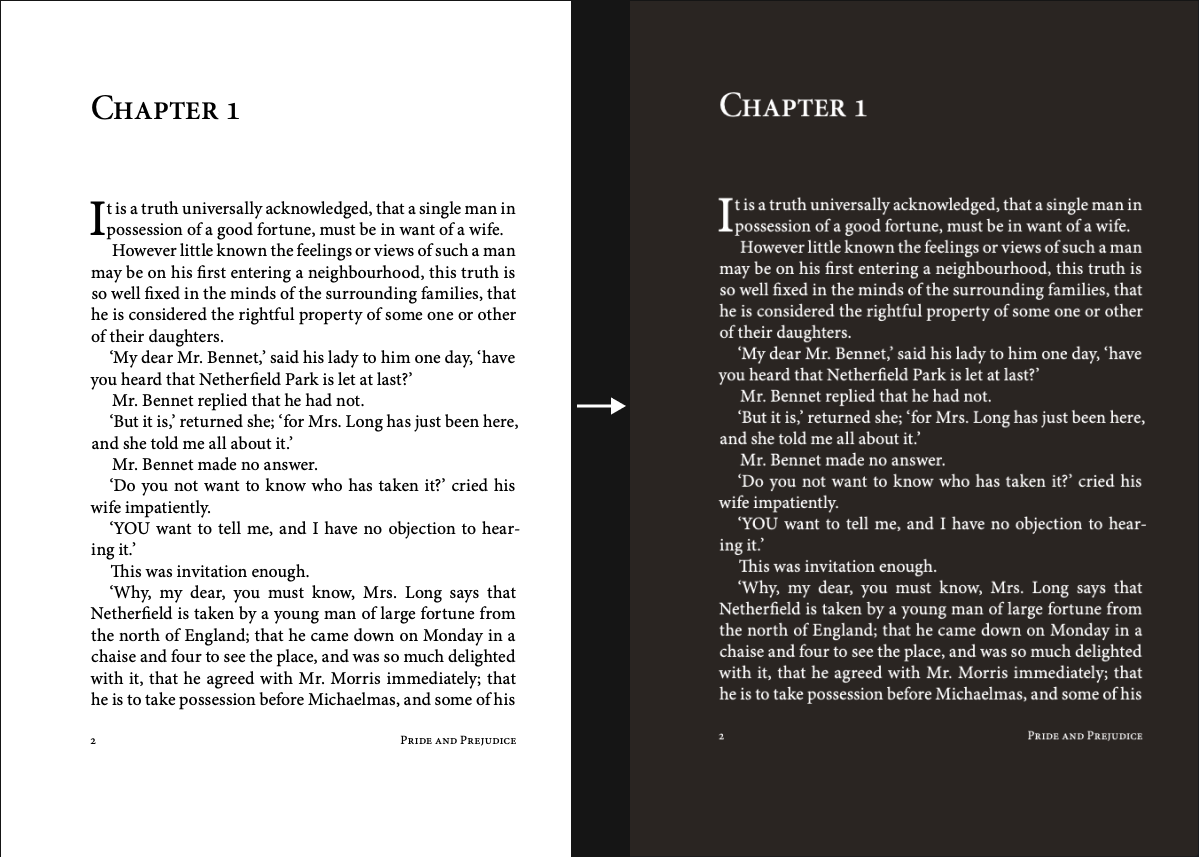
- Read in the browser with a dark background.
Before/After effect
Option 2: convert and save a dark PDF to your PC
If you want the dark background embedded in the file — so it opens dark in any PDF viewer, can be shared, or saved to OneDrive — convert it first.
- Open Invert PDF Colors in your browser.
- Upload your PDF and choose a theme.
- Click Download. The file saves to your Windows Downloads folder.
Once downloaded, the dark PDF works in any application on Windows — open it from File Explorer, pin it, attach it to an email, or upload it to SharePoint or OneDrive. The dark background travels with the file.
How the converted PDF works with Windows PDF apps
Microsoft Edge (Windows default)
Windows 11 sets Edge as the default PDF viewer. Open your downloaded dark PDF in Edge and the dark background displays correctly. You can use Edge's built-in annotation tools (draw, text notes) on top of the dark background, then save the annotated file.
Adobe Acrobat Reader
If you have Adobe Acrobat installed, the converted PDF opens normally. The dark background is part of the file content, so it displays regardless of Acrobat's own display settings. You can annotate, fill forms, and use all standard Acrobat features.
Sumatra PDF
Sumatra is a popular lightweight PDF reader on Windows. The converted dark PDF opens with its dark background intact in Sumatra, since the colors are embedded in the file itself — no special settings needed in Sumatra.
File Explorer preview panel
If you have the preview panel open in File Explorer (View > Show > Preview pane), selecting the converted PDF shows the dark background in the preview. This makes it easy to confirm the conversion before opening the file.
Changing your default PDF app on Windows 11
If you regularly read dark PDFs in a specific app, you can set it as your default so converted files open there automatically:
- Go to Settings > Apps > Default apps.
- Search for .pdf in the file type search box.
- Click the current default and select the app you prefer.
After this, double-clicking any PDF in File Explorer — including your converted dark PDFs — opens directly in the app you chose.
FAQ
Does Windows 11 dark mode not work on PDFs at all?
Correct. Windows dark mode changes the OS interface and apps that support Windows theming. PDF files carry their own colors internally, and Windows has no way to override them. Even when Edge, Acrobat, or another viewer switches to a dark interface in dark mode, the PDF document itself remains white.
Is my PDF uploaded to a server when I use the converter?
No. Both the PDF Dark Mode Reader and Invert PDF Colors process your file locally in your browser. Nothing is sent to a server, which makes it safe to use with work documents, confidential reports, or personal files.
Does this work on Windows 10 as well?
Yes. The browser-based tools work on any Windows version with a modern browser. The PDF Dark Mode Reader and Invert PDF Colors are not tied to a specific Windows version.
Can I share the dark PDF with someone on a Mac or phone?
Yes. The converted PDF is a standard file. The dark background is embedded in the document, so it displays correctly on any device and in any PDF viewer — macOS Preview, iOS Files, Android PDF apps, or any browser.