How to read PDFs at night without eye strain
Published: March 10, 2026
Maya is a nursing student who regularly finishes her study sessions late at night. She sits at her desk working through long PDF textbooks after her shifts, and by page 30 her eyes are burning. Her laptop is in dark mode, her browser is dark, but the moment she opens a PDF — bright white background, black text, full screen glare. She turns down the monitor brightness until she can barely read, which just makes everything blurry instead.
If that sounds familiar, you're not dealing with a settings problem. PDFs simply don't respond to your device's dark mode the same way websites do. But there is a real fix — and it doesn't require installing anything.
Quick answer
The fastest way to get pdf night mode on any device is to open your PDF in a browser-based dark mode reader. Upload your file, pick a warm or classic dark theme, and read with a dark background — all inside your browser, without downloading any app. Your PDF file stays on your device throughout.
If you want the dark version saved as a file you can share or read offline, use the Invert PDF Colors tool to download a converted copy.
Method 1 (fastest): open your PDF in a dark mode reader
This is the simplest option for night reading. No sign-up, no extension, no install — just open the tool in your browser and upload your PDF.
- Go to the PDF Dark Mode Reader.
- Upload your PDF. Processing happens locally in your browser — the file is never sent to a server.
- Choose a theme. For night reading, Warm or Classic are the easiest on your eyes.
- Read directly in the browser. Scroll through as normal.
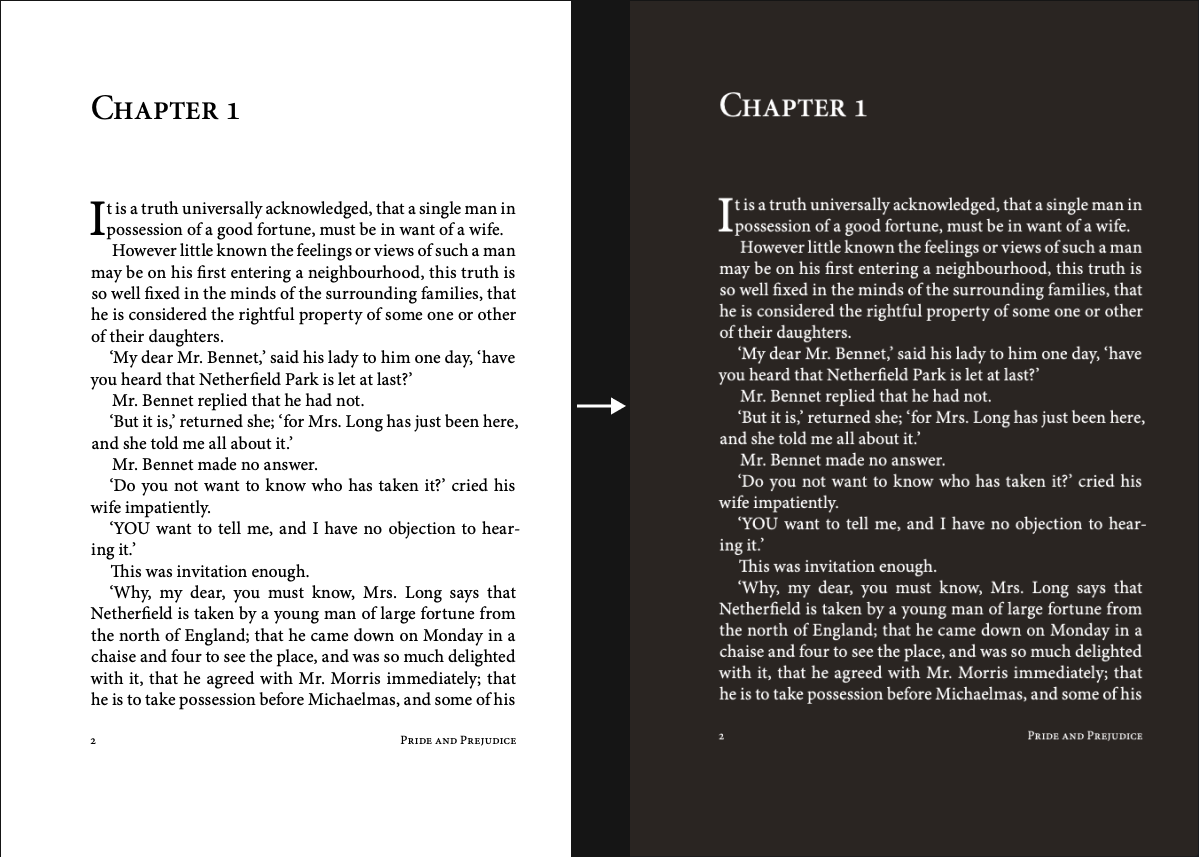
The dark background reduces the contrast between the screen and the room around you, which is the main reason PDFs feel harsh at night. A warm tint also filters some of the cooler blue light that can make it harder to wind down before sleep.
Before/After effect
Method 2: download a dark PDF for offline reading
If you want pdf night mode that works in any PDF viewer — on your phone, on a tablet, or even shared with someone else — you can convert the file and download a dark version.
- Open Invert PDF Colors.
- Upload your PDF.
- Choose a theme. Warm gives you a sepia-like tone, Classic gives a clean dark background with white text. Invert (Negative) does a full photo-negative effect — complementary colors throughout.
- Download the converted file.
The downloaded PDF keeps the dark theme in any viewer: Adobe Acrobat, Apple Books, your phone's default PDF app — whatever you use. You don't need to come back to the website every time you want to read it.
Which theme is actually best for night reading?
Not all dark themes are equal when it comes to eye comfort at night. Here's a quick breakdown:
Warm
Dark background with a slightly warm/amber tint. Good for long reading sessions. Reduces blue light more than other themes. Similar to reading by lamplight.
Classic
Dark background with neutral white text. Clean and easy to read. Good for documents with charts and images where color accuracy matters.
Blue / Green
Tinted dark backgrounds. Personal preference — some people find cool tones easier on the eyes, others prefer warm. Worth trying if Warm or Classic don't feel right.
Invert (Negative)
Full color inversion — photos and diagrams look like photo negatives. Best for technical or legal documents with mostly text. Not ideal if your PDF has a lot of images.
For most people doing night reading — studying, reading articles, going through reports — Warm is the best starting point.
Other things that help when reading at night
Switching to pdf night mode is the biggest change you can make, but a few other adjustments can make a real difference:
- Lower your screen brightness. Once your PDF background is dark, you can drop brightness further without losing readability. Bright screen + dark room is the main cause of strain.
- Turn on your device's blue light filter. Night Shift on iPhone/Mac, Night Mode on Android, or f.lux on Windows. This stacks well with the Warm theme.
- Increase text size if you can. Squinting at small text in a dim room adds more tension than people realize. Zoom in slightly.
- Take short breaks. Every 20–30 minutes, look at something across the room for 20 seconds. This isn't a PDF-specific tip — it just genuinely helps with any extended screen time.
Why doesn't my device's dark mode work on PDFs?
This is probably the most common frustration. Your phone or laptop is in dark mode, everything looks dark — then you open a PDF and it's blinding white. This happens because PDFs are not web pages. They're fixed-format documents. When your operating system applies dark mode, it works by recoloring web content and UI elements. A PDF file has its own background and text colors baked in, so the system's dark mode simply doesn't reach inside it.
Some PDF apps have their own night mode or dark mode setting (Adobe Acrobat has one, for example), but these are app-specific and don't always work well for all document types. A dedicated pdf night mode reader or converter gives you more consistent results across different files.
FAQ
Is my PDF file uploaded to a server?
No. When you use the PDF Dark Mode Reader, your file is processed locally in your browser. Nothing leaves your device. This makes it suitable for sensitive documents like medical records, contracts, or study materials.
Does this work on mobile at night?
Yes. The PDF Dark Mode Reader works on iPhone, Android, and tablets directly in your mobile browser. No app download needed. Open the site, upload your PDF, and read with a dark theme.
What's the difference between the reader and the converter?
The reader lets you view your PDF with a dark theme in the browser — nothing is saved or downloaded. The converter (Invert PDF Colors) lets you download a new version of your PDF with the dark theme permanently applied, so you can read it anywhere, even offline.
Does the dark theme affect charts and images in the PDF?
The Warm, Classic, Blue, and Green themes apply a tint to the overall document, which generally keeps charts and images readable. The Invert (Negative) option does a full color inversion, which can make photos look strange. If your PDF has lots of images, stick to the tinted themes.