Invert PDF for printing: save ink by flipping a dark PDF to light
March 18, 2026
Printing a dark-background PDF wastes a lot of ink. Here's how to invert it back to white before printing — a quick fix that saves toner on any printer.
Invert PDF colors in your browser and download the file. For temporary reading without saving, use the dark mode reader.
Step 1
Step 2
Step 3
100% Local Processing - Your files never leave your device
💡 Just want to read PDFs in dark mode without downloading? Try our PDF Dark Mode Reader
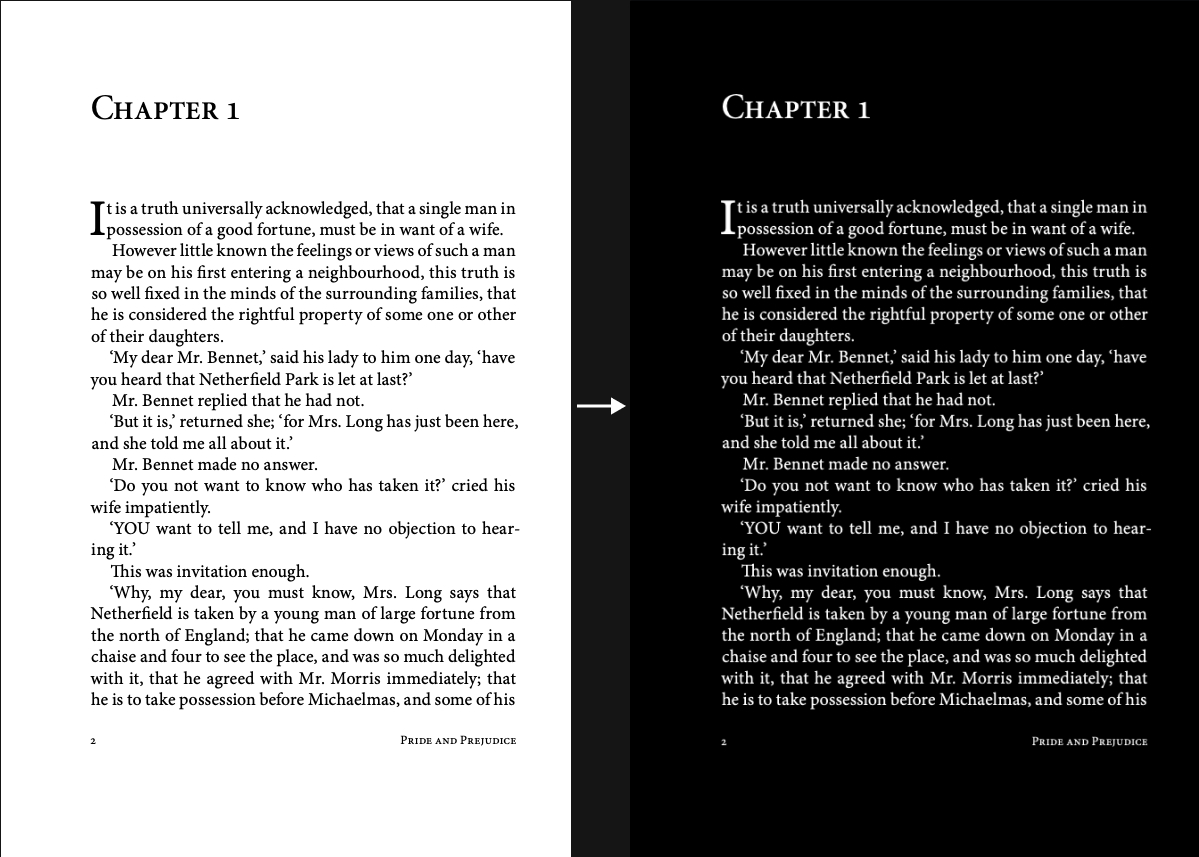
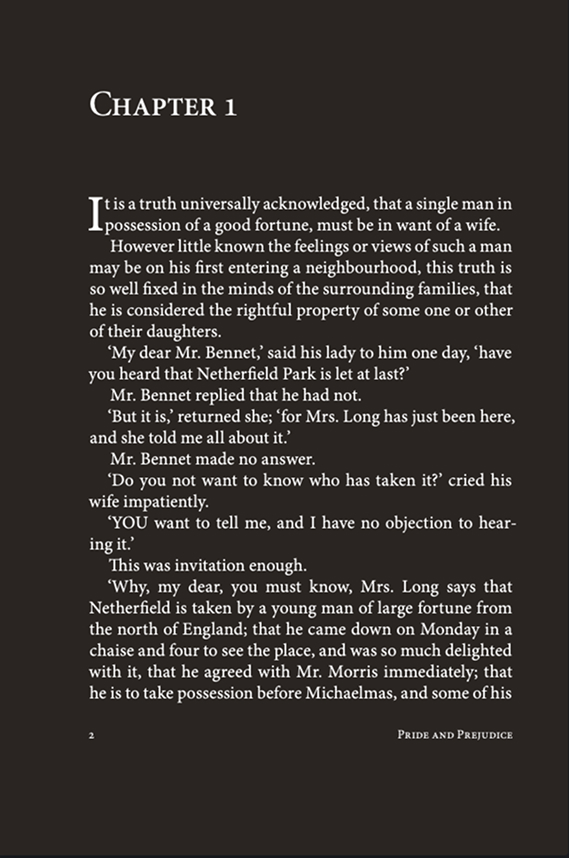
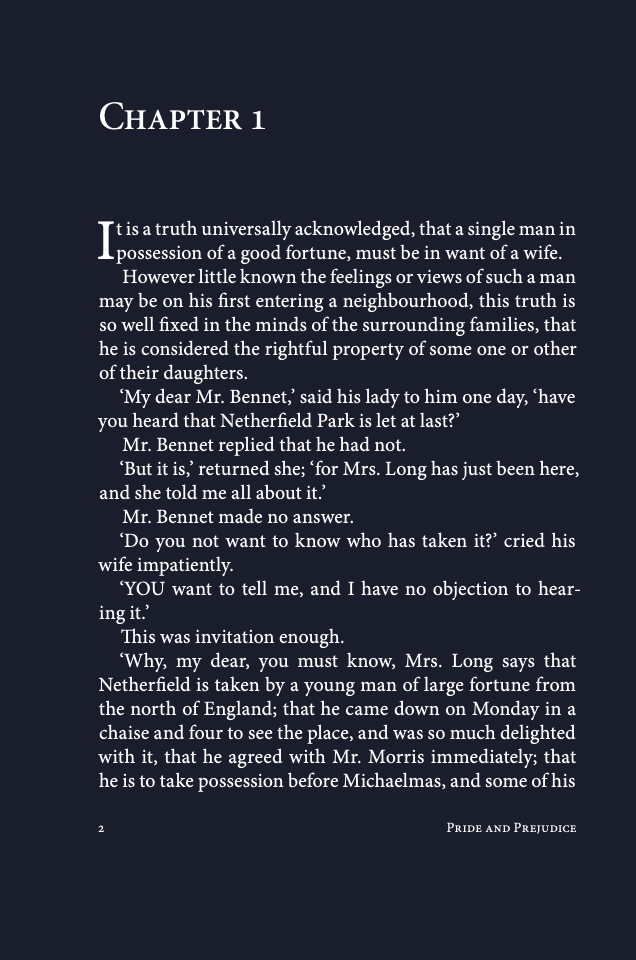
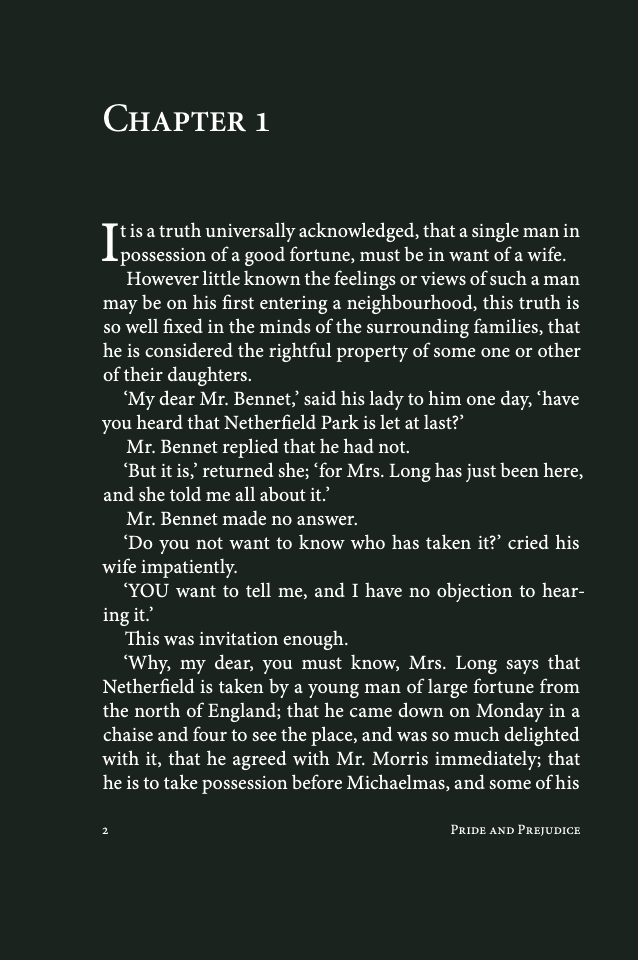
Invert PDF means flipping a bright page into its opposite so you can keep a dark copy. Invert PDF online on this page happens in your browser: preview the pages, then download a new file. Invert PDF colors in the default setting are a true negative. White paper turns black, black type turns white, and other hues move to their complements. People use Invert PDF when a textbook, a contract, or an exported slide deck is too bright at night, or when the dark look has to travel with the file. The original stays untouched, because Invert PDF online is processed locally. There is no upload and no account. If you only need a dark view for this sitting, do not Invert PDF colors yet. The homepage reader is for temporary reading. Open the PDF there, pick a theme, and read. Come back when you want to Invert PDF online and keep the result.
The download is a normal PDF. Acrobat, Chrome, Safari, Edge, and phone viewers show the dark pages without an extension and without returning to this site. Invert PDF colors are already part of the file.
The tool reads the PDF in the browser and writes a separate download. It does not overwrite the source. Keep the bright file for printing or for other people, and keep the inverted copy for night reading. You never have to Invert PDF colors onto the only copy you have.
You can Invert PDF online at no cost, with no watermark and no server in the middle. You do not create an account.
This page selects Invert (Negative) first, because a full invert is the job. If a scan, a photo, or a color-coded table looks too harsh, switch the preview to Warm, Classic, Blue, or Green and download that instead. Those options are reading tints. They are not the same as Invert PDF colors in the strict negative sense.
Choose the PDF. Invert PDF online starts in your browser, and the file is not uploaded. The file name appears before any pages are drawn.
Review the preview. Invert (Negative) is already selected, so the first pages show a full invert. Choose Warm, Classic, Blue, or Green only when you want a tint instead of Invert PDF colors at full strength.
Click Convert & Download. The finished file has Invert PDF colors saved into the pages, so it opens dark in any normal viewer.
Temporary reading and a saved invert are different jobs, and this site splits them on purpose. Use the homepage reader when the session is enough. The pages turn dark in the tab, you scroll, and the original file is not rewritten. That fits a one-time review or reading in bed.
Use this page when the dark pages have to exist later. You Invert PDF colors, check the preview, and download a second file for a flight, a class folder, or an email. The reader is for the moment. This converter is where you Invert PDF online and keep the file.
Already holding a dark PDF and need light pages for paper? Open that file here and run Invert (Negative) again. A second full invert moves the page back toward a light background, which uses less ink than printing a solid black sheet.
Practical guides and tips for reading PDFs in dark mode.
March 18, 2026
Printing a dark-background PDF wastes a lot of ink. Here's how to invert it back to white before printing — a quick fix that saves toner on any printer.
March 18, 2026
Windows dark mode doesn't apply to PDFs. Here's how to read or convert any PDF with a dark background on Windows — in any browser, no software install.
March 16, 2026
Firefox's built-in PDF viewer has no dark mode toggle. Here's the fastest way to read any PDF with a dark background in Firefox — no extensions needed.